6 internal newsletter templates you can copy today
It's Thursday afternoon, the newsletter goes out tomorrow, and the document in front of you is still blank. That's the moment an internal newsletter template exists to fix: a reusable structure, subject line, sections, and a sample paragraph for each, that you fill in instead of starting from scratch every send. The six templates below are copy-paste-ready: fully written out as text, with the section order and sample copy already in place, so you paste the structure into whatever tool you send from and swap in your own details. This guide also covers the design habits that keep a newsletter readable on a phone and the fastest way to build and send one, including in Blink's Newsletter Builder.
One note before that: Blink's Newsletter Builder sends as a branded email, built from your feed posts and events. The templates below work for an email newsletter either way, so if your tool sends in-app instead, swap the "reply to this email" lines for an in-app equivalent like "message your buddy in the app."
Before the templates, a quick note on where this fits. If you're still deciding what to put in your newsletter, our internal newsletter ideas guide covers content angles. This piece is about structure and copy: what to actually type once you know what you want to say. For the broader strategy behind why and how often you communicate at all, see our internal communication strategy guide. If you're evaluating tools to send it from, our roundup of internal communication tools compares the main options.
What makes an internal newsletter template work?
A working internal newsletter template is scannable, built for a phone screen, built around one main story, and ends with a clear action. Skip any of those four and open rates drop, because the person reading it is usually doing so between tasks, not sitting at a desk with time to spare.
- Scannable: short paragraphs, a bolded first line per section, and headers that tell the reader what's coming before they commit to reading it.
- Mobile-first: no multi-column layouts and no text buried inside an image, since most frontline and deskless employees only ever access company communication from their own phone, not a work desktop.
- One main story: pick the single most important thing this issue needs to land, and put it first, instead of burying it under five updates of equal weight.
- Clear action: every newsletter ends by telling the reader what to do next: RSVP, read the full policy, ask their manager a question, show up somewhere.
The templates below are built around those four rules. Copy the structure, keep the section order, and swap in your own content.
6 internal newsletter templates you can copy
Each template is a ready-to-use structure: when to use it, three subject line options, and a section-by-section outline with sample copy you can adapt line by line. Anywhere you see a term in brackets, like [Company] or [date], treat it as a fill-in-your-own placeholder rather than copy to send as written. Keep the subject line short where you can, since mobile inboxes cut off long ones.
1. Monthly company update
A monthly update is the single recurring newsletter that covers the whole business in one scheduled send. Use this when you need one recurring newsletter that covers the whole business, sent on a predictable schedule so people know when to expect it.
Subject lines:
- "Your November update is here"
- "This month at [Company]: 3 things to know"
- "[Company] monthly: wins, news, what's next"
Structure:
- Opening line: "Here's what happened across [Company] this month, and what's coming up." One sentence, no preamble.
- The headline story: The single biggest thing this month, in 2 to 3 sentences. Example: "[Fill in this month's biggest result], a first for the team. That's down to every site hitting its targets, not just one standout location."
- Quick hits: Three to five short updates, one line each, bolded lead-in. "New hire: Priya joins the Leeds team as shift supervisor, starting the 18th."
- Recognition: Name one team or person and what they did.
- What's next: One or two upcoming dates or changes.
- Action: A single link or ask. "Read the full Q3 results here."
2. Frontline weekly
A frontline weekly is a short, frequent update built for shift-based or deskless teams rather than a monthly roundup. Use this for a short, frequent update aimed at shift-based or deskless teams, sent on the same day every week so it becomes part of the routine.
Subject lines:
- "Your week ahead: [date]"
- "This week on shift: schedule, news, shoutouts"
- "5-minute weekly: what you need to know"
Structure:
- Opening line: "Here's what you need for the week ahead." No further setup.
- Schedule or operational note: Anything that affects this week specifically, a shift change, a new process, a delivery date.
- One story from the floor: A short update from a site or team, written like something a colleague would actually say, not a press release.
- Shoutout: One name, one sentence, specific about what they did.
- Reminder: A single standing item, a safety check, a deadline, a policy refresh.
- Action: "Tap here to confirm you've seen this week's schedule."
3. New hire welcome
A new hire welcome is the first newsletter a new hire gets, built to read as a welcome rather than a policy dump. Use this as the first newsletter a new hire receives, ideally sent before day one or in the first week.
Subject lines:
- "Welcome to [Company], [Name]"
- "Everything you need for your first week"
- "You're officially one of us"
Structure:
- Opening line: "Welcome to [Company]. We're glad you're here." Direct and warm, not a formal preamble.
- Who to know: Name the manager, the buddy or mentor, and one person from HR, with how to reach each.
- What to expect in week one: A short, numbered list of what's happening and when.
- Where to find things: Links or pointers to the handbook, the schedule, the app or portal they'll use day to day.
- A human touch: One line about the team or site culture that isn't in the handbook. "Fridays are usually pretty relaxed, don't be surprised if someone brings donuts."
- Action: "Reply to this email with any questions, or ask your buddy directly." If your tool sends in-app rather than by email, swap this for "message your buddy directly in the app."
4. Safety bulletin
A safety bulletin is a safety-specific update sent on its own so it gets read and acted on, not folded into general news. Use this for a safety-specific update that needs to be read and acted on, not buried in a general newsletter where it can get missed.
Subject lines:
- "Safety update: please read before your next shift"
- "New safety procedure, effective [date]"
- "Important: a change to how we handle [hazard/process]"
Structure:
- Opening line: State the change or incident plainly in the first sentence, before any other context.
- What changed and why: Two or three sentences, factual, no jargon.
- What this means for you: Specific, role-based instructions. "If you work in receiving, this changes how you log incoming pallets."
- What to do if you have questions: Name a person or team, not a generic inbox.
- Confirmation ask: "Please confirm you've read this update before your next shift."
Send this one on its own, separate from the monthly or weekly update, and track who's actually read it rather than assuming a general newsletter's open rate covers it.
5. Leadership note
A leadership note is a message sent under a named leader's voice rather than the comms team's, used when the content calls for a personal tone. Use this when a message needs to come from a named leader, because the content, a strategy shift, a tough quarter, a big win, calls for a personal voice.
Subject lines:
- "A note from [Name]"
- "An update from our CEO"
- "Where we stand, and where we're headed"
Structure:
- Opening line: Write it in first person, as the leader would actually say it. "I want to share something directly with all of you."
- The context: What's happening and why it matters, in plain language, no spin.
- The honest part: If there's bad news, don't soften it past the point of clarity. If there's good news, say why it happened, not just that it did.
- What happens next: Concrete next steps, even if the next step is "we'll share more in two weeks."
- Closing line: Personal, not corporate. "Thank you for everything you do. I mean that." Sign with the leader's name, not a title block.
6. Event invite
An event invite is a single-purpose newsletter built to drive attendance or RSVPs for one event. Use this to drive attendance or RSVPs for a single event, a town hall, a site visit, a holiday party, a training session.
Subject lines:
- "You're invited: [event name]"
- "Save the date: [date]"
- "[Event name] is happening, here's what to know"
Structure:
- Opening line: Name the event and date in the first sentence.
- The details: Date, time, location (or link if virtual), dress code or prep needed, in a short bulleted block.
- Why it's worth showing up: One or two sentences on what people will get out of it, not just what it is.
- Who else is going: A light social proof line if relevant. "The whole regional team will be there."
- Action: A single, obvious RSVP button or link. Nothing else competing for the click.
Design tips for mobile readers
A newsletter built for a six-inch screen reads better everywhere, including on a desktop monitor, so design for mobile first. Keep paragraphs to two or three sentences. A wall of text that looks fine on a laptop becomes an unbroken gray block on mobile, and people scroll past it.
Use a single column. Multi-column layouts that look clean on desktop collapse into a mess on small screens, with images and text landing in the wrong order. Put the most important thing first, above the fold, because most readers decide whether to keep reading in the first two seconds, and on mobile that's often just the subject line and the first sentence.
Make buttons thumb-sized and obvious. A tiny text link buried in a paragraph gets missed. A clearly labeled button gets tapped. One primary action per newsletter is enough: ask someone to RSVP, read a policy, and give feedback in the same send, and most people will do none of the three. Write subject lines so the important word comes first rather than last, since long ones get cut off on a phone screen regardless of exact character count.
How to build these templates in Blink
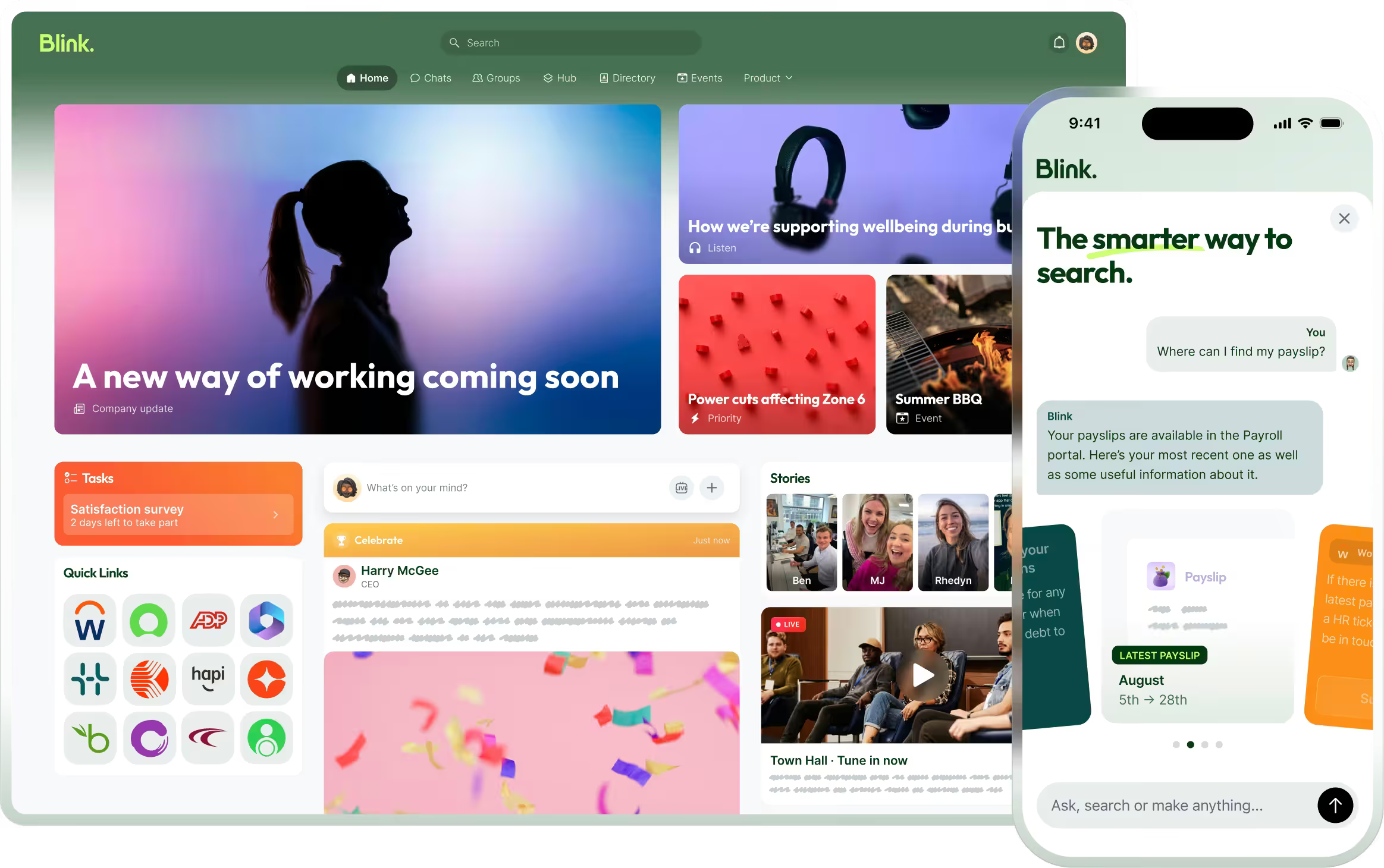
Blink's Newsletter Builder is an email newsletter tool built into Blink: it adds your Blink feed posts and events to a branded email, so the content you've already published does most of the work. For example, a monthly update built from scratch means writing every line yourself. Built from a month of feed posts already published, most of the copy already exists and the job becomes arranging and trimming it. The builder lets you start from a template, drag in feed posts, events, and extra text or image blocks around them, and send the finished email to the Blink groups you already post updates to, then track opens and clicks. Check Blink's Newsletter Builder page for the full feature list and what's included on your plan.
That matters for the templates above because most of the content already lives somewhere. The monthly update can pull from a month of feed posts. The event invite can pull from an event already created. The safety bulletin can link back to the original feed post, so a reader who wants more context gets it in one tap.
This works whether or not you send from Blink. The templates above are plain text, so the structure holds in any tool. For an ops manager covering several sites with a newsletter due every Monday, the difference Newsletter Builder makes is replacing a blank document with a formatted email built from content that already exists, rather than a new writing job stacked on an already full week.
Ready to send your next newsletter from a template?
You don't need a finished newsletter to start, just the blank page in front of you and ten minutes. Start a 14-day free trial to build your first newsletter from a template inside Blink. If you'd rather see it walked through with your own feed content first, book a demo with the team.