Broadcast your biggest moments — LIVE

Bring your company-wide events to life with broadcast-quality live streaming, directly in the Blink News Feed. Whether you’re hosting a town hall, facilitating a training session, or moderating an executive Q&A, you can now connect with all employees in real time — without switching platforms.
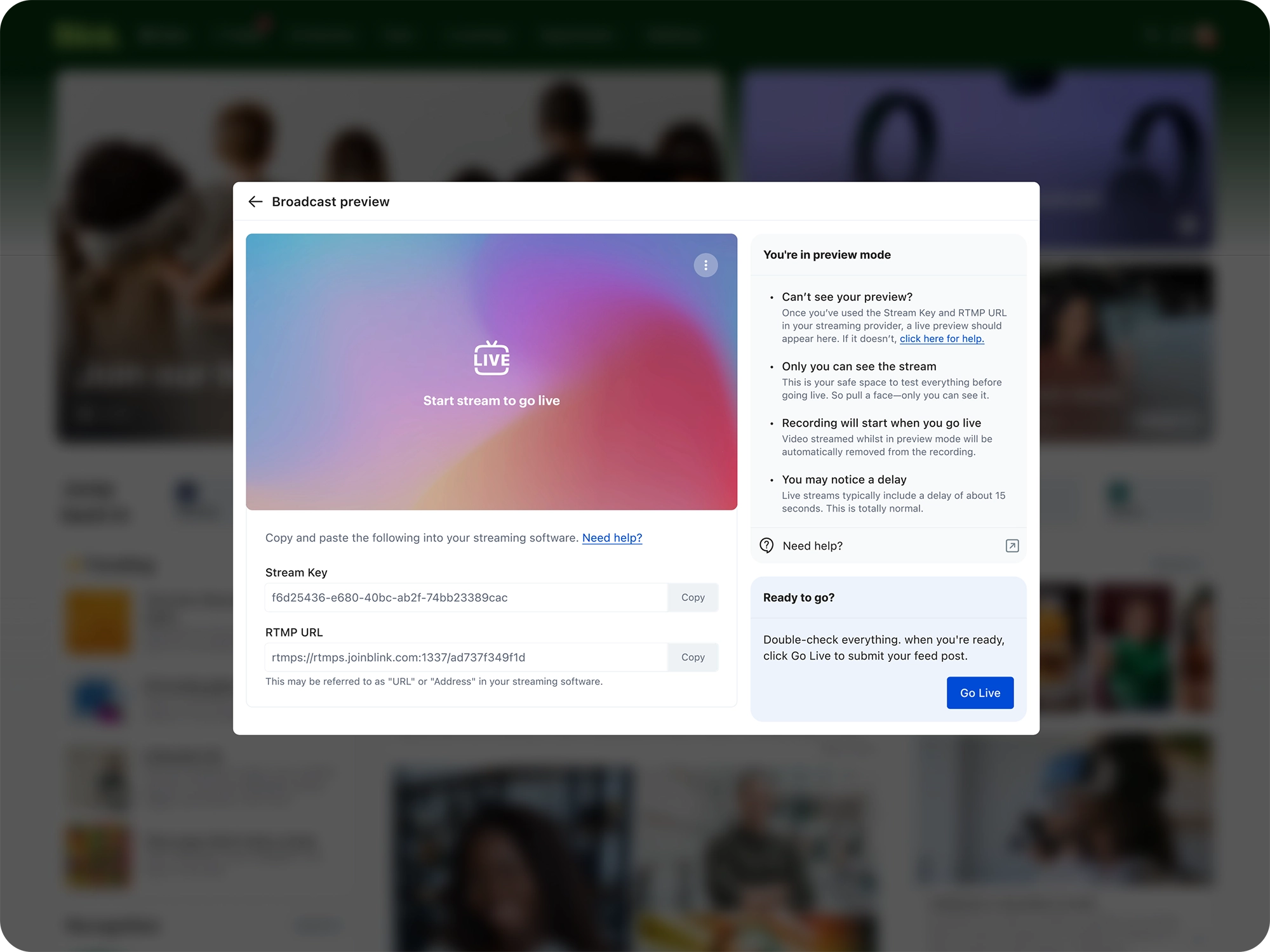
Broadcast preview window showing stream key, RTMP URL, and instructions for starting a live stream with a colorful gradient preview pane and Go Live button.

Go live, right from the feed

Build excitement by creating and promoting your stream as a regular feed post — then go live when you’re ready. All employees need to do to tune in is press play.

Icons of Vimeo, YouTube, OBS Studio, and Microsoft Teams surrounding a blue button labeled 'Go live'.

Use the tools you already trust

Stream through your preferred video platform partner, including Vimeo, YouTube, or any RTMP-supported platform (like Zoom or OBS). No Blink-specific or IT-heavy setup required.

Two mobile screens showing a woman with long dark hair in an orange sweater live streaming a Half Year Results Town Hall and a poll about company focus areas with equal votes for customer success and supporting the user base.

Engage your audience in real time

Viewers can comment, react, and interact directly on the post as the event unfolds just — enabling in-the-moment chances to build real-time connection and community.

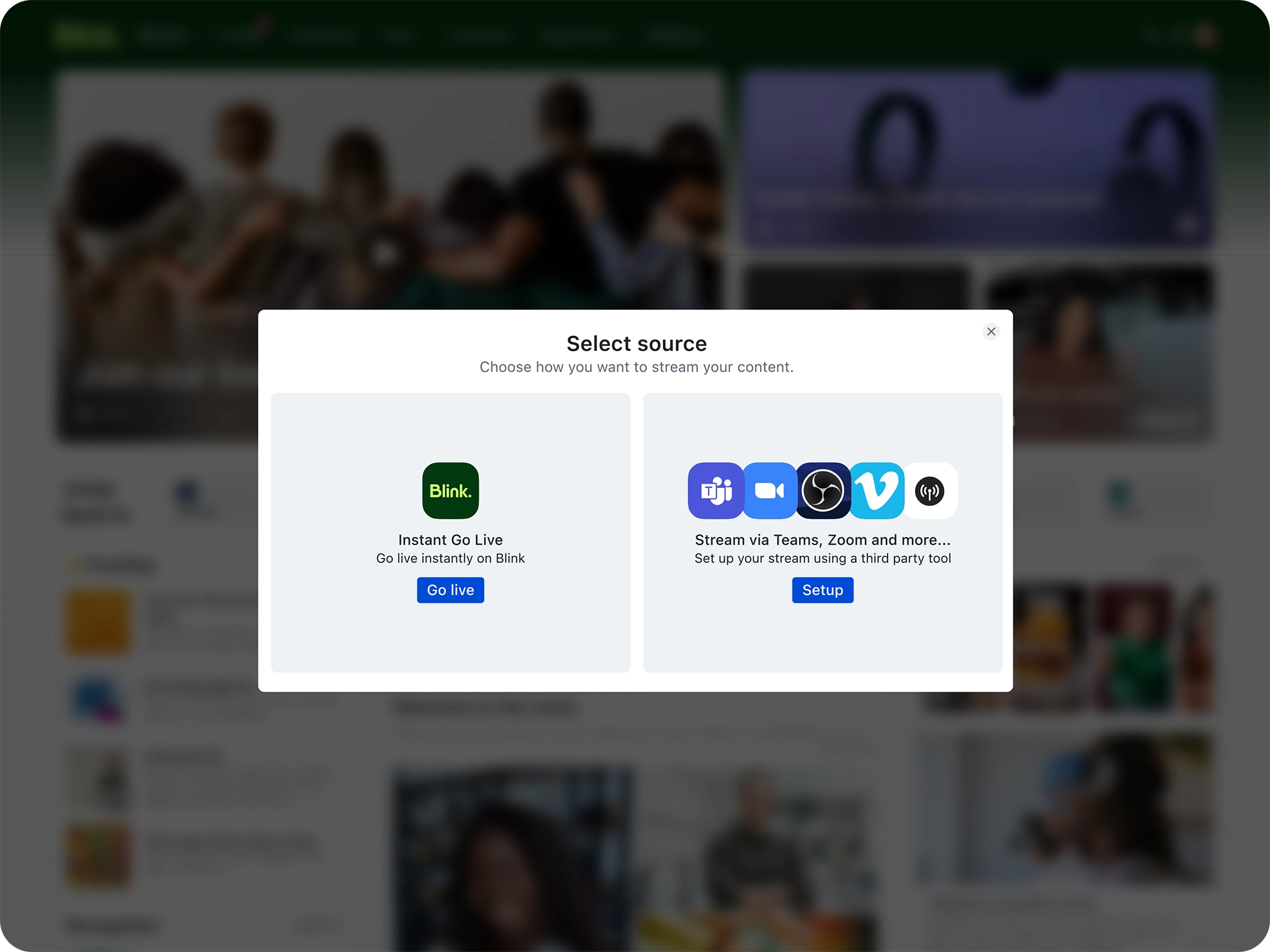
Dialog box with options to go live instantly on Blink or stream via Teams, Zoom, and other third-party tools.

Let your message live on

With auto on-demand playback and DVR mode, streams don’t disappear when the event ends. Anyone can rewind, replay, or catch up later — making it easier than ever for employees working in different geographies or on the frontline to feel included.

With live streaming, power real-time connection with every employee:

Frequently asked questions

What is live streaming in Blink?

Live streaming in Blink lets you broadcast company-wide events — such as town halls, training sessions, and executive Q&As — directly in the News Feed. Employees simply press play on the feed post to tune in. Blink offers two options: Instant Live Streaming (a native, in-app experience with no third-party setup) and RTMP streaming, which connects to platforms like Zoom, Microsoft Teams, and OBS.

Which streaming platforms does Blink support?

Blink supports Instant Live Streaming natively within the app, plus any RTMP-compatible platform. This includes Zoom, Microsoft Teams, OBS, YouTube, Vimeo, and more. For Zoom specifically, Blink offers a direct integration that handles stream credentials automatically in the background.

How do I set up a live stream in Blink?

To start a live stream, click the "Live" button in the post creation box on the Feed. For Instant Live Streaming, select the "Instant Live" option — no external software needed. For RTMP streaming, Blink will provide you with a stream URL and key to enter into your chosen broadcasting software (e.g., Zoom, Teams, or OBS). You can add text, select your audience, schedule the post, and go live when you're ready.

Can employees watch a live stream after it ends?

Yes. With Instant Live Streaming, the broadcast is automatically saved as a video recording on the Feed, so employees can watch it back at any time. The platform also supports DVR mode, allowing viewers to rewind or catch up during a live broadcast — ideal for frontline workers or employees in different time zones.

Is live streaming accessible on mobile devices?

Absolutely. Blink's live streaming is fully optimized for mobile, so employees can watch from any device — whether they're at a desk or on the frontline. Streams also include auto-generated captions, ensuring every employee can follow along regardless of their environment or accessibility needs.