
All-in-one employee app: what belongs in it (and what shouldn't)
A regional retail ops director buys a new "all-in-one" employee platform expecting it to replace the scheduling tool, the payroll system, and the comms app in one move. Six months later, staff are juggling the new platform alongside the old scheduling tool anyway, because the new system couldn't handle the shift-swap rules the old one had. The fix wasn't a third platform. It was drawing a clearer line between what the app should own and what it should just connect to, and once that line moved, the old scheduling tool finally came out of daily use.
That's the trap. An all-in-one employee app is a single mobile app where frontline and deskless staff get company news, talk to colleagues and managers, find policies and schedules, and complete routine tasks, without needing five separate logins. For a retail chain, a care provider, or a logistics operator, that single front door is often the difference between information reaching staff and it dying in an inbox nobody checks. The mistake isn't wanting one app. It's expecting that one app to also run payroll and workforce scheduling from scratch.
This guide covers what belongs in the core app, what should stay integrated instead, how to evaluate your options, and how Blink works as that front door, including the Workday and other HRIS connections that tie it to the rest of your stack.
For a deeper look at the broader shift toward connected frontline experience, see 8 steps to building a better frontline employee experience.
What is an all-in-one employee app?
An all-in-one employee app is a single mobile application that gives every employee, including those without a company email or desk, one place for communication, knowledge, tasks, and recognition. Instead of separate logins for a comms tool, an intranet, a scheduling system, and a recognition platform, staff open one app on the phone they already carry.
The "all-in-one" label is often misunderstood as one vendor doing every HR and operations function. In practice, the strongest version of this app acts as a front door: it owns the daily, high-frequency interactions and connects to specialist systems for the transactional work those systems already do well.
Why does app sprawl hurt frontline teams?
App sprawl happens when frontline staff are handed a different login for every function, comms, scheduling, payroll, learning, and most of them give up before the third one. A desk-based employee might tolerate five single sign-on tiles on a laptop they're already logged into. A warehouse picker, a home care worker, or a retail associate on a personal phone doesn't have that patience, and often doesn't have a company email to register half those tools in the first place.
Take a home care worker moving between four visits a day. Checking a schedule change between appointments means finding a signal, remembering which app the schedule lives in this month, and hoping the login still works. That's the moment app sprawl actually costs something: not in a boardroom, but on a doorstep between two clients.
The cost shows up in three places. First, adoption: every extra app is another password to remember and another reason to default back to a personal WhatsApp group, which creates its own GDPR and compliance exposure since none of that communication is owned or auditable by the employer. Second, cost: licensing five point tools, each with its own admin overhead, usually costs more than one platform with the same functional coverage. Third, management time: ops and HR leaders end up running IT support for logins instead of running the business, chasing down who can't get into which app before their shift starts.
What belongs in the core app, and what should stay integrated?
The core app should own anything an employee touches daily or weekly. Specialist systems should keep anything transactional, regulated, or already working well. Getting this split wrong in either direction is the most common reason all-in-one rollouts underdeliver.
Belongs in the core app:
- Communications. Company news, site-level and role-level targeting, manager-to-team messaging, and two-way chat so staff can ask questions back, not just receive broadcasts.
- Knowledge. Policies, SOPs, and procedures employees need before or during a shift, searchable rather than buried in a shared drive frontline staff can't access.
- Tasks. Checklists and routine task assignment tied to a role or location, so managers aren't relaying the same instructions site by site.
- Shifts. Visibility into schedules and shift changes, including swapping a shift with a colleague, so staff aren't calling a manager to find out when they're working.
- Recognition. Peer and manager recognition that's visible to the team, not a private email nobody else sees.
- Forms. Digital versions of the paper processes that used to require a trip to HR, time-off requests, incident reports, call-ins.
Should stay integrated, not rebuilt:
- Payroll. Pay calculation and tax compliance are regulated and jurisdiction-specific, and already built by payroll providers. The app should surface a pay stub or next-pay-date, not recalculate it.
- Scheduling engines. Complex rostering logic (labor law compliance, demand forecasting) belongs in a dedicated WFM tool. The app should show the output.
- HRIS. Core employee records, benefits administration, and compliance tracking live in systems like Workday, built for that job.
- LMS. Course content and certification tracking are specialist functions. The app should make training easy to find and complete, not replace the LMS backend.
If a function is regulated, complex, or already working, integrate it. If it's a daily touchpoint that currently requires logging into something separate, bring it into the core app.
How do you evaluate an all-in-one employee app?
Evaluate against five criteria: adoption, single sign-on, integrations, offline access, and admin control, in that order. Features matter less than whether staff actually use the app and whether your team can run it without a dedicated engineering resource.
- Adoption, not just feature count. Ask any vendor for real adoption figures from comparable deployments, not just feature lists. A platform that fewer people open is worth less than a simpler one that the whole frontline actually uses, no matter how the feature lists compare on paper.
- Single sign-on and no-email activation. Many frontline workers don't have a company email. Confirm the app can activate people through a phone number or invite code, and ask how SSO works for the office staff who do have one.
- Integrations with what you already run. Check whether the vendor has existing connectors to your HRIS, payroll, and ticketing systems, not just a generic claim of "open API." A library of pre-built integrations is a different proposition from a developer project.
- Offline and low-connectivity support. Warehouses, basements, and rural routes don't always have reliable signal. Confirm the app functions, or at least queues updates, when connectivity drops.
- Admin control without IT dependency. Your ops or HR team should be able to target content, build forms, and manage groups without filing a ticket every time something needs to change. Check what sits behind which pricing tier before you commit. Plan gating varies by vendor, and some integration or admin capabilities are add-ons rather than included features.
If you're switching from an existing tool rather than starting fresh, plan for a period where both systems run in parallel: migrate one function at a time, starting with whichever daily habit staff already rely on most, and don't retire the old system until adoption of the new one is confirmed at every site.
How does Blink work as the front door for frontline teams?
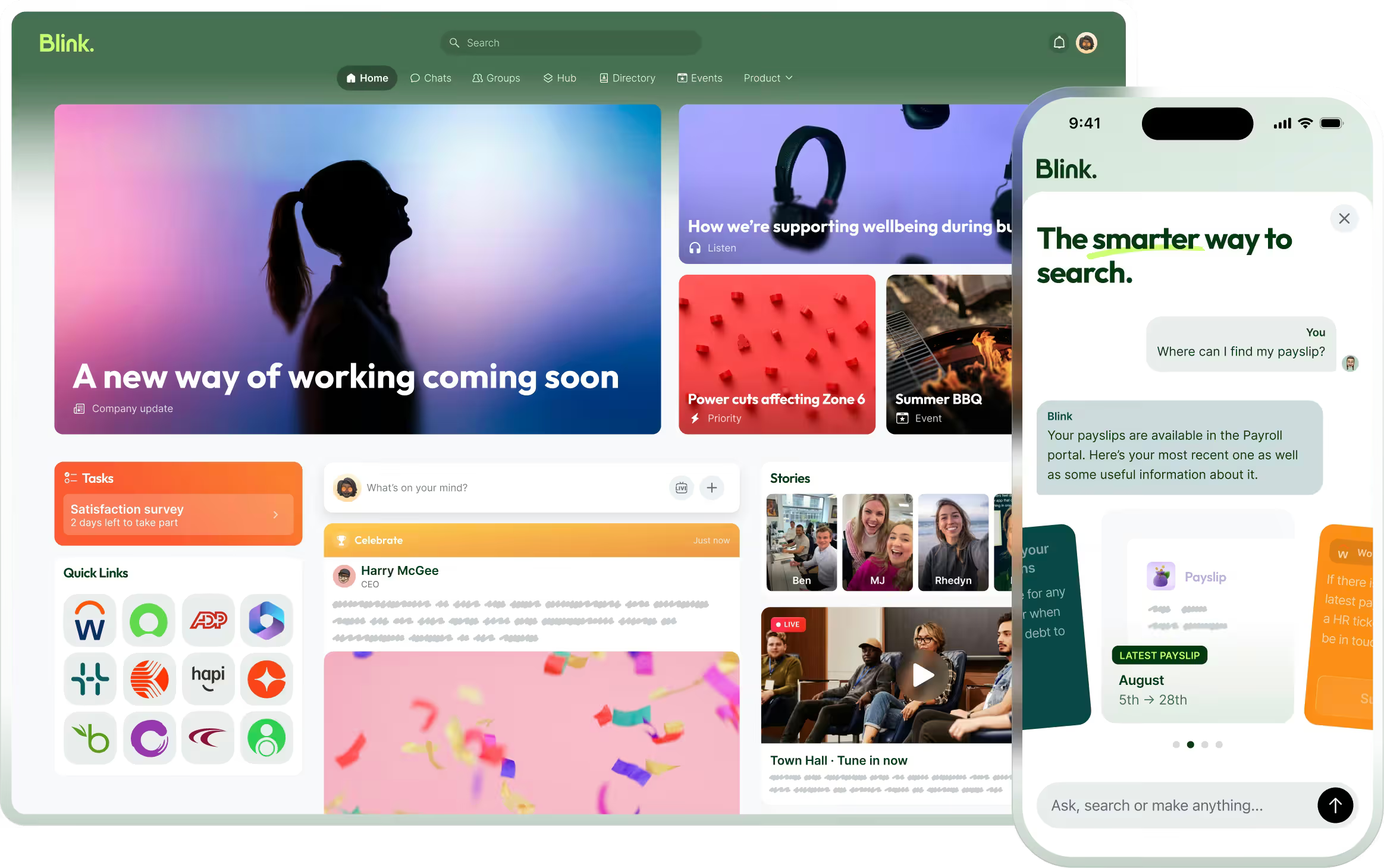
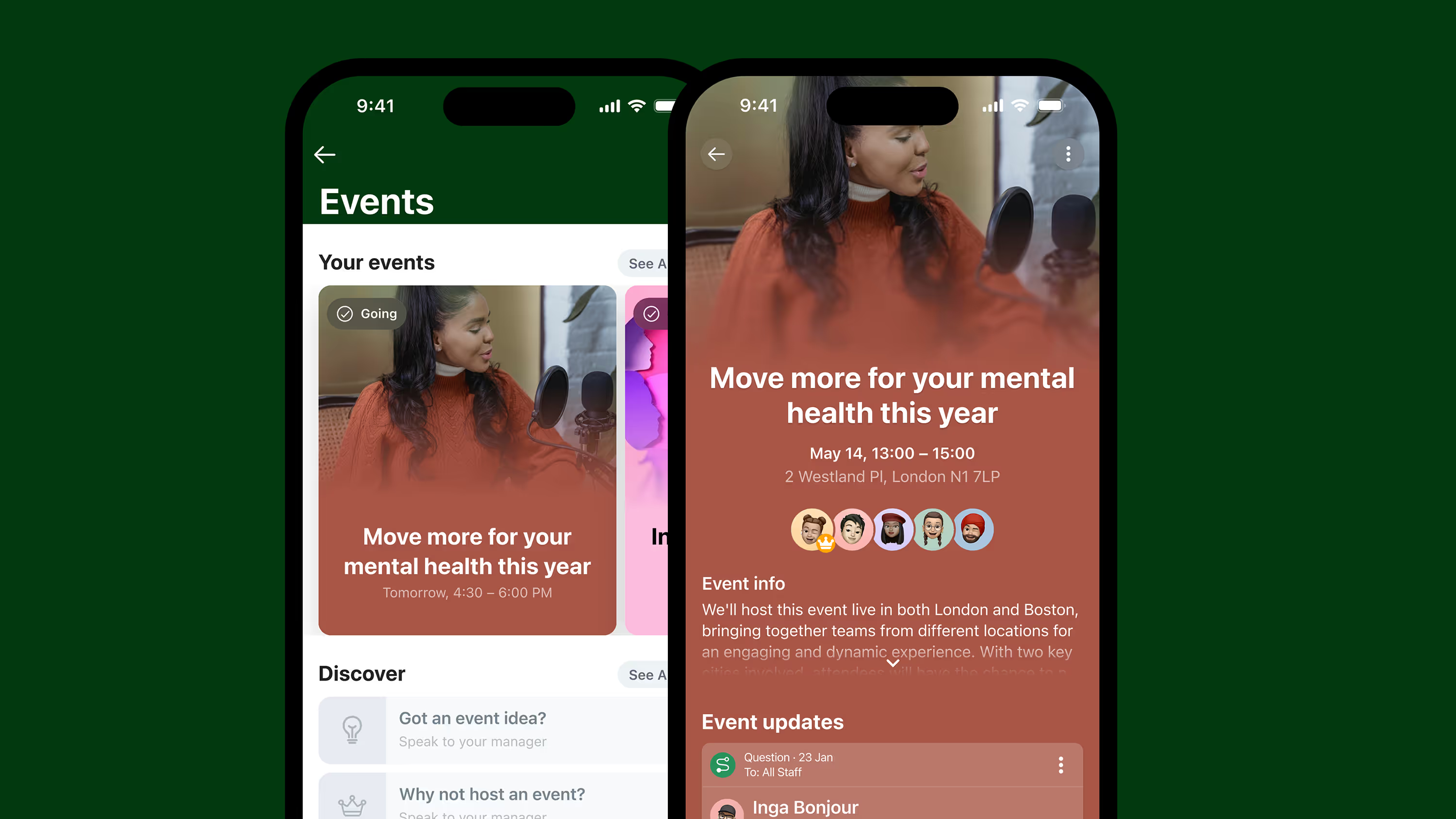
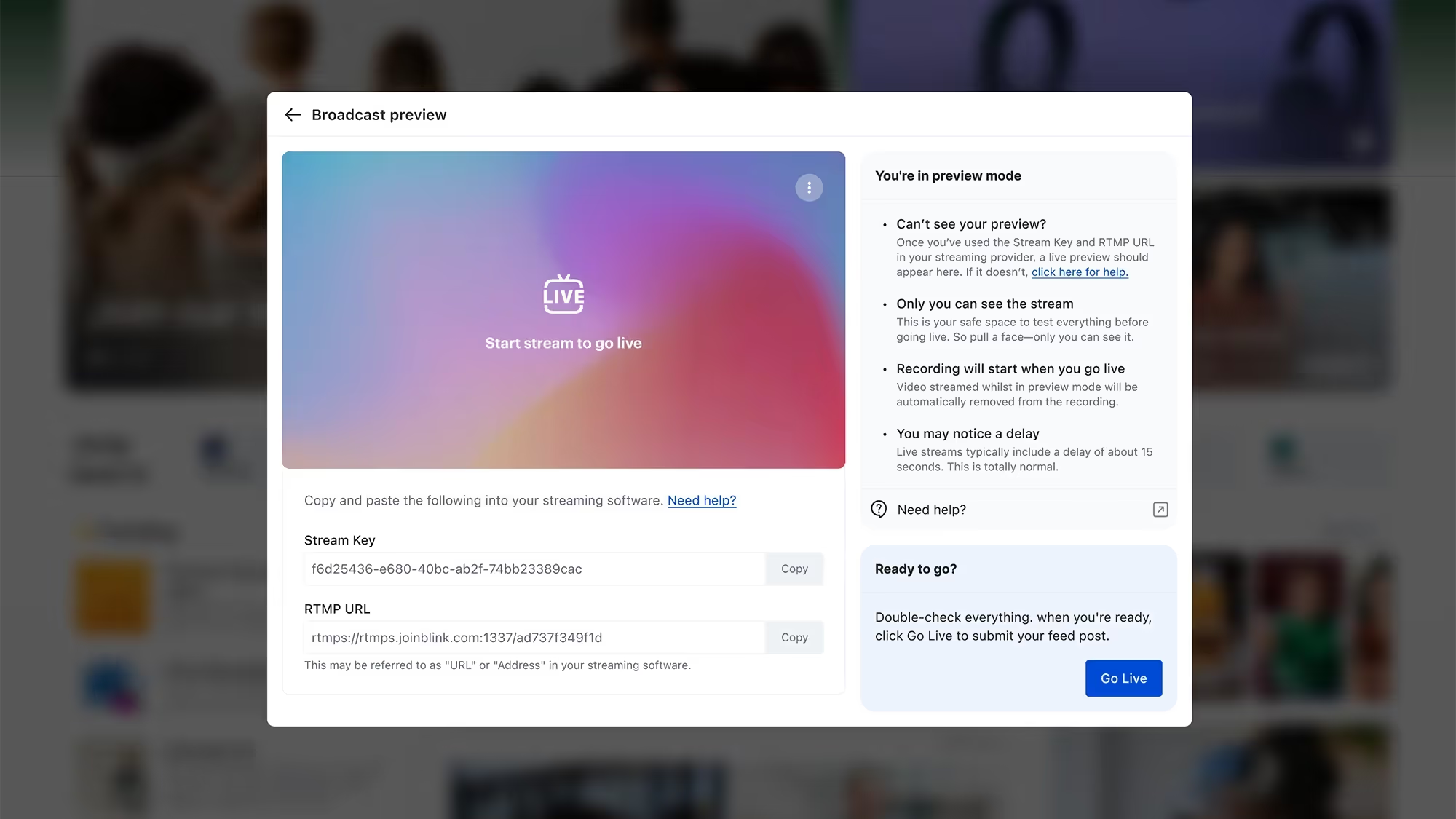
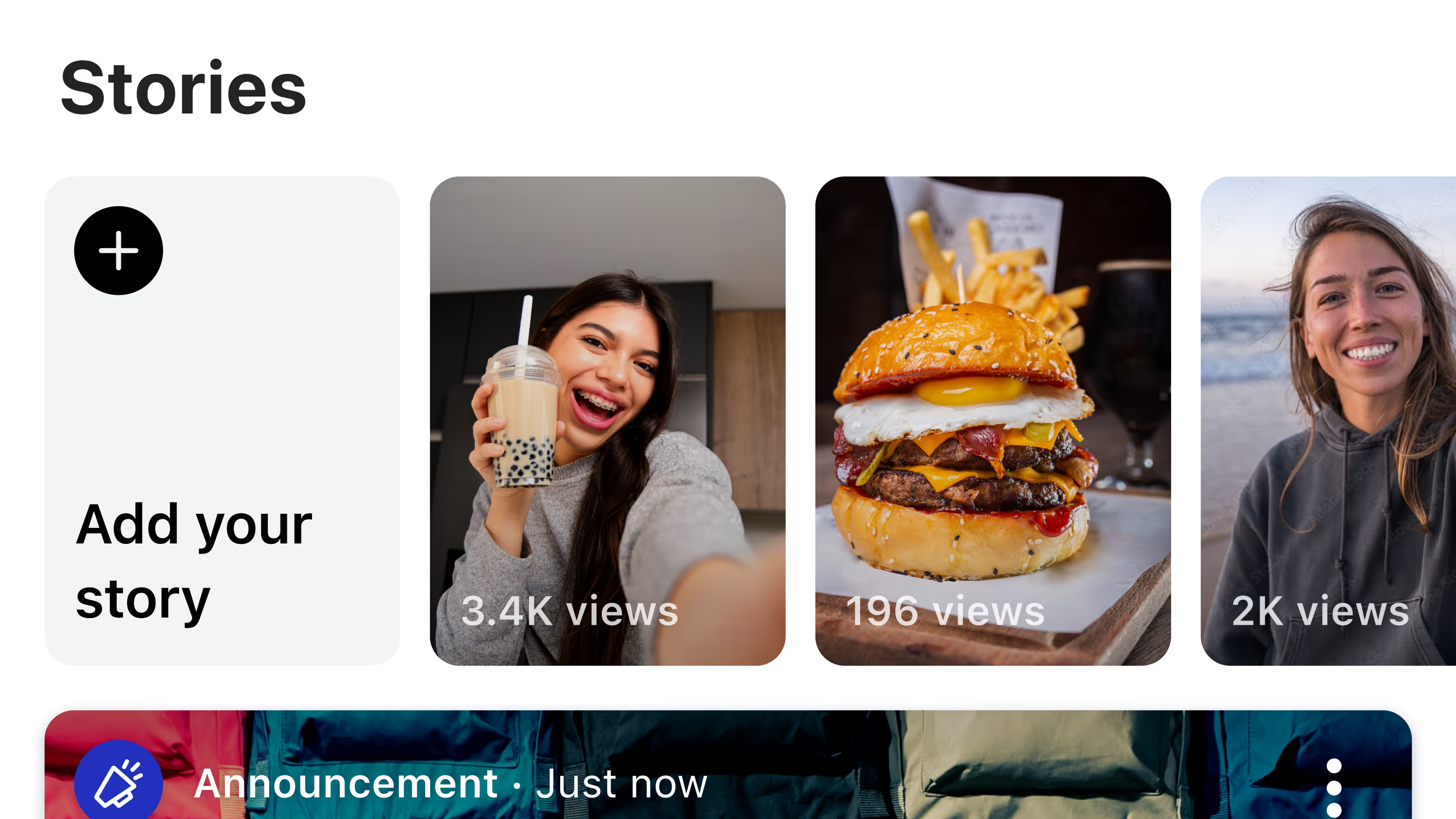
Blink brings communication, knowledge, tasks, shifts, recognition, and forms into one app, and connects out to the systems that already run your operations. The Feed and Hub deliver targeted news by site, team, or role, while the Hub holds the policies and resources staff need before a shift starts. Two-way chat replaces the personal WhatsApp groups that create compliance risk, Digital Forms replace the paper processes that used to mean a trip to HR, and recognition is visible to the whole team instead of sitting in a private inbox. Shift Swap Request lets two team members trade a shift between themselves, and Open Shifts, available as an add-on, lets managers advertise uncovered shifts on the Feed for eligible staff to request. That's the scheduling gap from the opening example: the rostering engine stays where it is, and the day-to-day swap and cover logic that used to force a second app lives in the one front door instead.
On the integration side, Blink connects to Workday and other major HRIS platforms, along with ADP, ServiceNow, and the broader set of identity, payroll, and workforce tools listed on the integrations page. Teams running a Workday rollout alongside Blink can read more in our guide to the Blink and Workday integration. The point of these connections isn't to replace Workday or ADP, it's to surface what they already hold, a pay stub, a benefit, a shift, inside the one app frontline staff open every day.
Try Blink as your front door
Start a 14-day free trial to see how the front door works with your existing systems, or book a demo to walk through your specific integration needs.