Workforce app: how to choose one for frontline teams
A retail chain runs a scheduling app for schedules, a separate comms app for company news, and an HR portal that only really works on a desktop. Three logins, three passwords, and a frontline employee who has time to check one of them on a ten-minute break. That's the problem a workforce app is supposed to solve, and it's also why so many ops and HR leaders end up buying the wrong one. Some workforce apps handle scheduling and nothing else. Others are built for payroll, or comms, or compliance checklists, and call themselves a "workforce app" regardless. If you're choosing one for a multi-site team where most people don't carry a laptop, the category label tells you almost nothing. What matters is which job the app actually does, and whether your frontline staff will open it. This guide breaks down the main types of workforce app, what to check before you buy, and the mistakes that sink adoption after launch.
What is a workforce app?
A workforce app is a mobile tool that gives employees who don't sit at a desk access to schedules, communication, tasks, and HR information from their own phone. Depending on the vendor, that can mean scheduling and time tracking, two-way communication, task checklists, HR self-service, or some combination of all four. Vendors use the term inconsistently: a scheduling vendor, a payroll vendor, and a comms vendor will all call their product a "workforce app" even though the products share almost no features. What they're usually missing is a shared design starting point, since most workforce software is still built for a desktop screen first and adapted for mobile later, which shows the moment a frontline employee tries to use it one-handed on a break. For a multi-site or deskless organization, the workforce app is often the only digital system an employee ever touches, so the right question isn't what the app calls itself, it's which job it actually does on the device your staff carry.
For a deeper look at how this fits into the wider frontline employee experience, also known as a frontline employee experience or workforce management app, it helps to see where workforce apps sit relative to communication, engagement, and operations tools generally.
What are the main types of workforce app?
"Workforce app" isn't one category, it's five, and most vendors only cover one or two of them well. Before you compare specific products, work out which job you actually need done. The table below breaks down what each type is built for and where it typically falls short for frontline teams.
{{blink-table:table-1}}
Most organizations start with one of the first four and then discover the gap. A scheduling tool doesn't tell anyone about a policy change. A comms app doesn't track whether the closing checklist got done. That gap is usually where a second, third, and fourth app gets added, each with its own login and its own notifications to check.
What should you look for in a workforce app?
The features that matter most for frontline teams aren't the ones on a typical feature comparison chart. They're the ones that decide whether someone without a desk can actually open the app on day one. Check each of these before you sign anything.
No company email required. Many frontline workers never get a company email address. If an app's account setup assumes one, part of your workforce is locked out before launch. This is a common reason a workforce app fails to reach the people it was bought for, and it's worth checking before anything else on this list.
Works on personal phones. Most frontline and deskless employees use their own device for work apps, not a company-issued one. The app needs to run well on a personal phone, not just a managed enterprise device.
Offline support. Warehouses, delivery routes, and basement stockrooms don't always have signal. An app that needs a constant connection to load a schedule or a checklist will get abandoned the first time it fails in a dead zone.
Translation and language support. Frontline teams are frequently multilingual. An app that only runs in English quietly excludes part of the workforce from information everyone else gets.
Single sign-on into the tools you already have. Single sign-on, or SSO, means one login gets an employee into several systems instead of a separate password for each. If your staff also use a payroll system, an HRIS (the HR system of record that holds employment data, payroll, and benefits), or a learning platform, check whether the workforce app can sit in front of those tools rather than beside them. One login is the difference between an app people open daily and one they avoid.
Adoption and activation support. A vendor should be able to tell you, specifically, how they get a workforce to actually use the app after launch, not just how the interface looks in a demo. Ask what setup actually takes, too.
Analytics on reach and completion. You need to know who's seen a message, who's completed a task, and who hasn't logged in at all. Without that, you're guessing whether your rollout worked.
Check these points against any vendor's pricing page directly, since capability is frequently gated by plan tier rather than included as standard.
What mistakes should you avoid when choosing a workforce app?
The most common workforce app mistakes happen before launch day, not after. Three show up repeatedly across multi-site rollouts.
Buying too many apps. A separate tool for scheduling, another for comms, another for compliance checklists, and a fourth for HR documents means several logins, several sets of notifications, and several places information can get lost. Frontline staff on a tight break rarely open all of them. They open the one they remember, and the rest go unread.
Choosing tools built for a desk first. Software built for an office worker with two monitors behaves differently on a five-inch screen during a ten-minute break. A tool that wasn't designed for a phone screen first shows that the moment someone tries to use it on the move, and that alone is often enough to kill adoption.
Skipping the rollout plan. The best workforce app in the world fails without a plan for how people hear about it, who champions it on the floor, and what happens in week two once the initial announcement has faded. Launch day attention doesn't sustain itself.
How to actually roll one out
If you're consolidating several existing tools into one workforce app, the order matters:
- Run the new app alongside the old tools for one pay cycle rather than switching everything on the same day, so staff can still find a schedule or a form where they expect it if something doesn't migrate cleanly.
- Migrate one function first, typically scheduling or the HR documents people check most often, and confirm accounts and data are correct before turning off the old tool for that function.
- Bring communication and tasks across next, once the first migration has settled.
- Train shift-level champions before the broad announcement goes out, not after, so there's someone on the floor who already knows the app when questions start.
A US manufacturer illustrates the "before" side of this problem, not the multi-site migration itself: before switching, staff at the site called in absences on a phone line, checked overtime schedules that were only ever announced verbally, and submitted time-off requests on paper through HR in person. Moving all three into a single digital hub freed HR from handling those requests one at a time and gave the frontline a way to self-serve on tasks that used to require a phone call or a trip to the office.
Why does the right workforce app matter for frontline workers?
Deskless and frontline employees are consistently the group hit hardest by communication and engagement gaps, across every sector Blink works in, because most workplace software still gets designed for an office worker first. A workforce app that requires a company email, demands a strong signal, or only runs well on desktop fails the exact people it was meant to reach, and once that first login fails, most people don't come back to try again. Getting the category right the first time avoids the common failure mode of frontline teams defaulting back to personal messaging apps or paper notices because the official tool never reached them.
How does Blink fit as the front door for frontline teams?
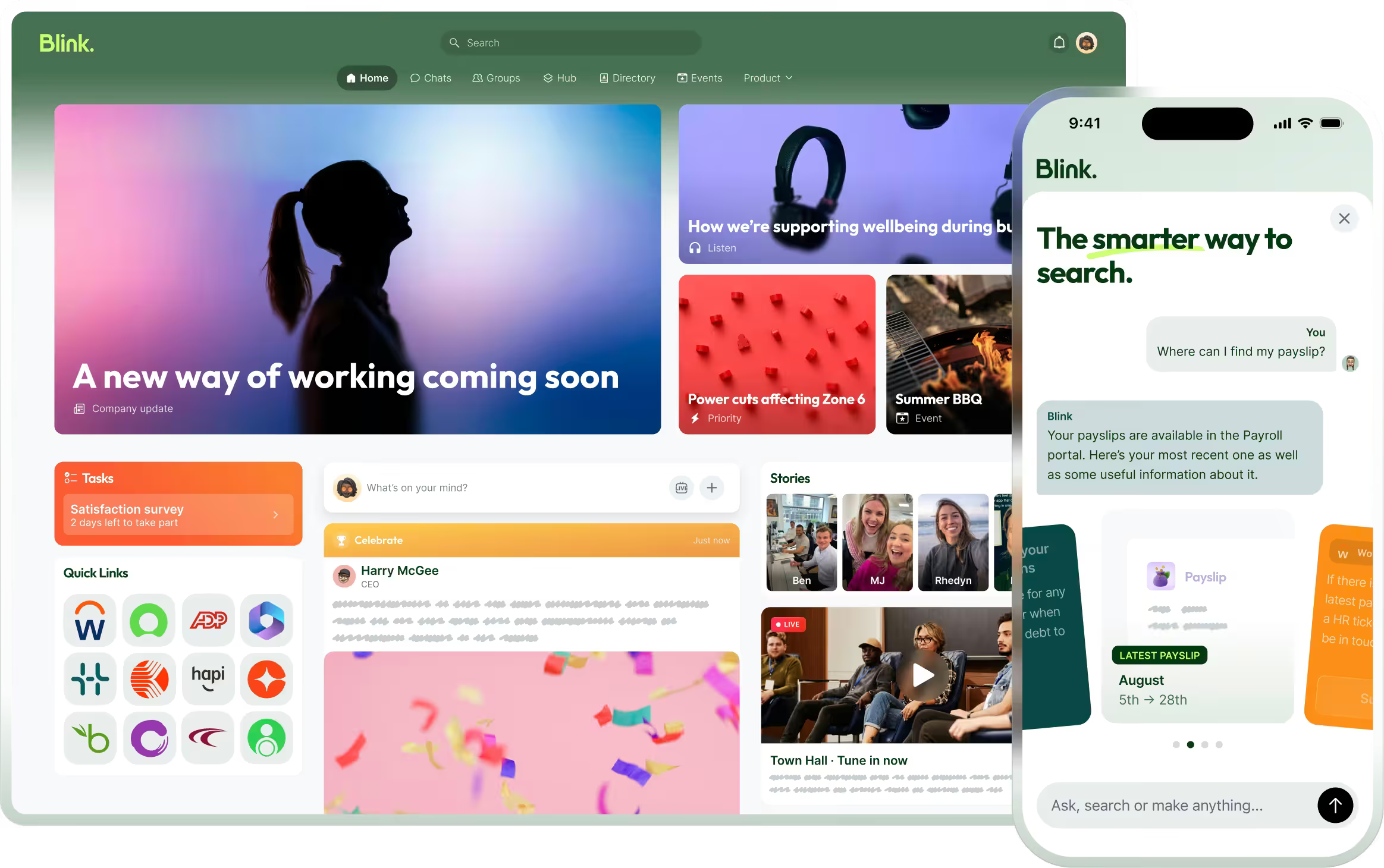
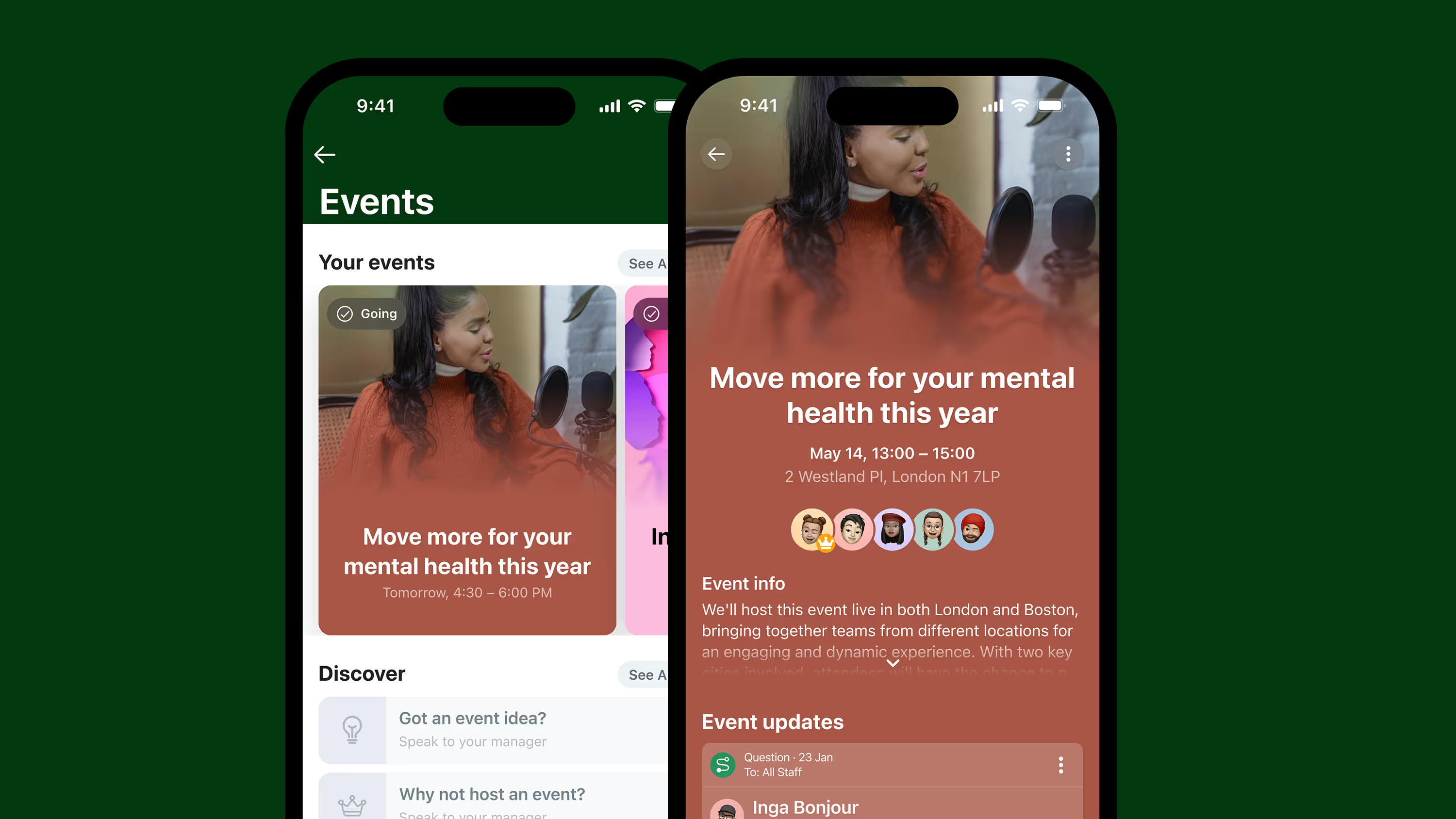
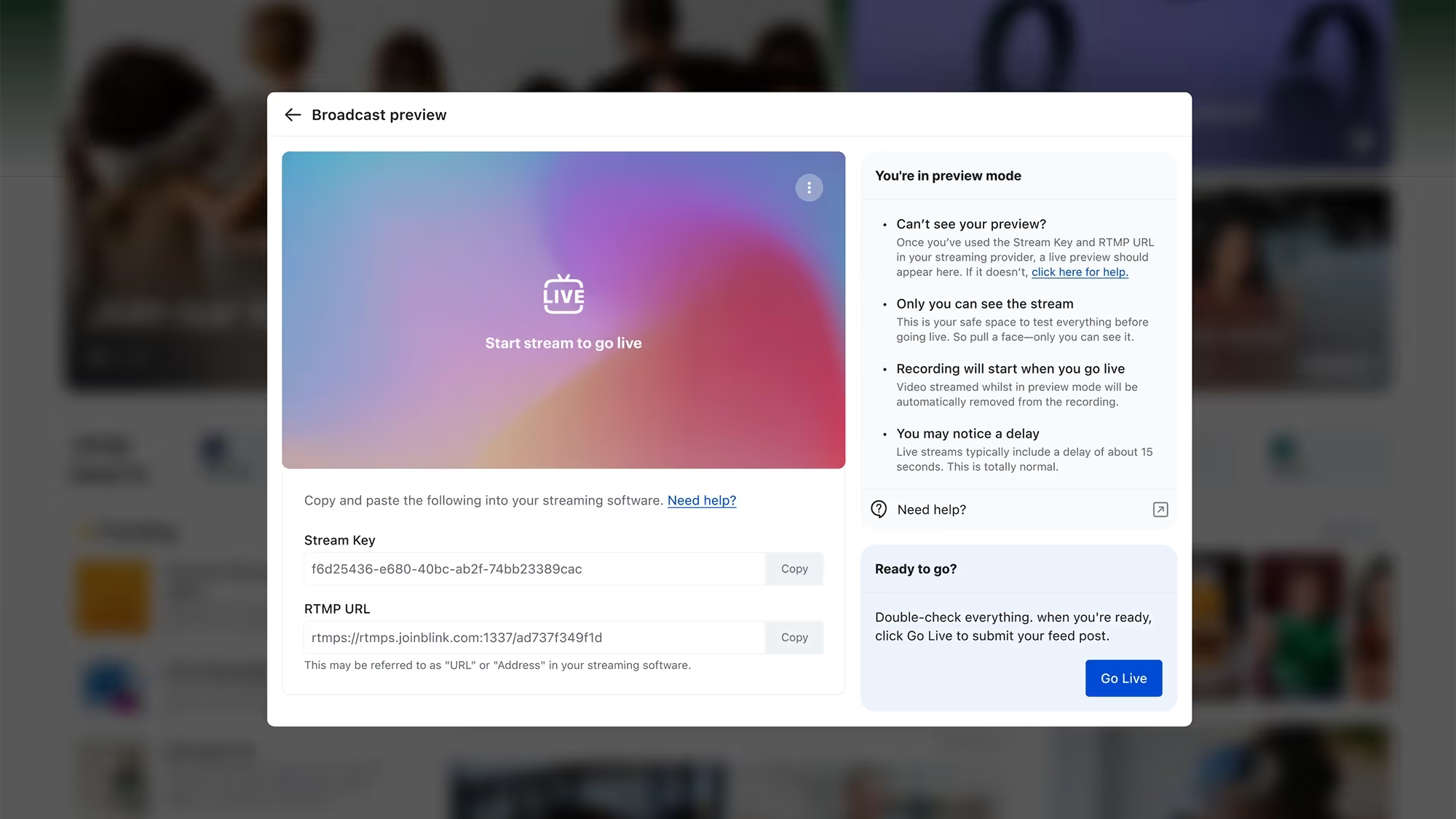
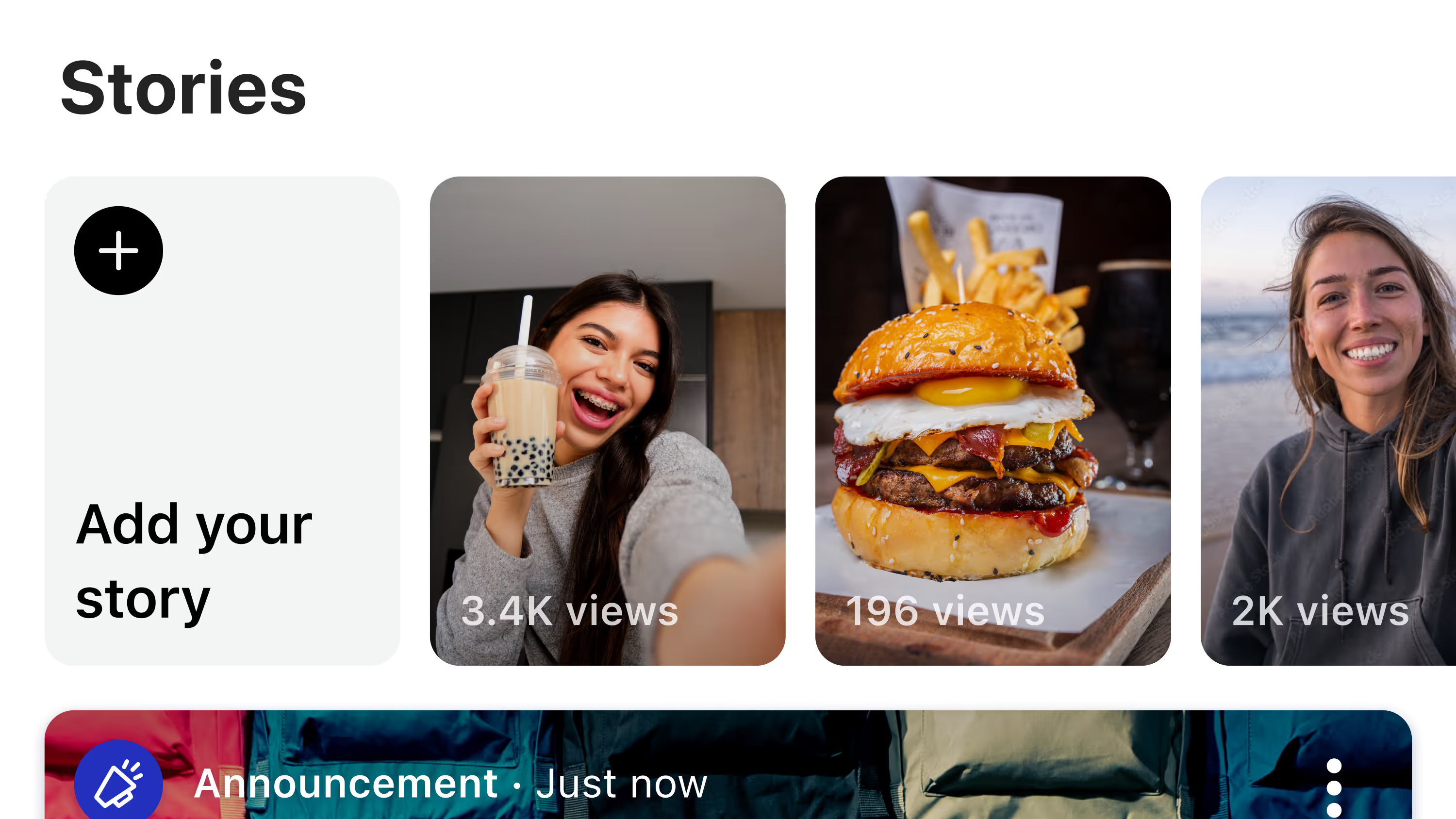
Blink works as a single front door that brings communication, tasks, scheduling, and HR access into one app, rather than asking frontline employees to juggle several logins. Feed and Chat carry company news and two-way conversation to everyone, including people without a company email, replacing the WhatsApp group that was never actually sanctioned or auditable. The Hub centralizes policies, forms, and resources in one searchable place. Task management routes checklists by shift, works offline, and captures photo evidence for audit trails. Shift management lets eligible staff claim open shifts from their phone, with the fill logged automatically instead of worked down a phone tree. Single sign-on lets employees reach systems like Workday from inside Blink, so the workforce app becomes the layer that sits in front of the tools you already run, not another one stacked on top.
JD Sports used this approach to roll out a new HRIS: they ran the change campaign inside Blink and set up single sign-on so staff didn't need a second login to access the new system. JD Sports reached 87% adoption within 10 days of launch.
Overall adoption across Blink's customer base is over 90%.
See it for your own team
Start a 14-day free trial to see how it runs for your own frontline teams. If you'd rather walk through it with someone first, book a demo.