
Employee time clock app: a buyer's guide for 2026
If you manage hourly teams, you've probably lived some version of this: someone forgets to clock out on a Friday and payroll catches it on Monday, a manager is still reconciling paper timesheets by hand, or a new hire has no idea which of three apps they're supposed to use to report they're running late. An employee time clock app fixes the mechanics well. The trade-off worth planning for before you buy, not after, is that it's one more login on top of whatever your team already uses for scheduling, pay, and comms.
An employee time clock app is mobile or tablet software that replaces a punch clock or paper timesheet, letting hourly staff clock in and out from a phone, a shared kiosk, or a job site. Hours flow automatically into timesheets and payroll, cutting out manual reconciliation. A time clock is just one item on the longer list of tools frontline and hourly teams rely on to get through a shift, alongside scheduling, payroll, and basic company communication, so it's worth choosing one that fits into that stack rather than fighting it. This guide covers what to look for, how the main types of tools differ, how to roll one out without alienating your team, and how to stop the clock itself turning into one more login your team has to juggle. One section, near the end, is written specifically for businesses in the 100 to 800 employee range who are already running a time clock and want one place for staff to find everything else around it. If that's not your situation, skip ahead to the FAQ once you've picked a vendor. It's not a Blink buying guide either way: Blink isn't a time clock, and we say exactly where it does and doesn't fit before you get to that part.
What is an employee time clock app?
An employee time clock app is software, usually mobile-first, that records when hourly staff start and end a shift, replacing a physical punch clock or a paper timesheet. Workers clock in and out from their own phone, a shared tablet set up as a kiosk, or sometimes a point-of-sale terminal, and the system timestamps the entry, often with GPS or photo verification attached. Hours typically flow straight into a digital timesheet, which a manager reviews and approves before it's exported or synced to payroll. Most modern tools also track breaks, flag overtime against labor law thresholds, and let managers see who's working in real time across multiple locations. The category sits next to, but separate from, full workforce management suites: a dedicated time clock app does one job well, while a broader platform bundles it with scheduling, payroll, and HR.
Which features actually matter when you're comparing time clock apps?
The features worth paying for are the ones that catch errors before payroll runs, not the ones that make the sales demo look impressive. Here's what to check for.
Mobile clock-in. Staff should be able to clock in and out from their own device without a manager standing over them, and the app should work on both iOS and Android without a steep learning curve. If your team shares devices or doesn't carry a company phone, confirm the app supports a shared tablet or kiosk mode too.
Geofencing, with honest privacy limits. Geofencing restricts clock-in to a set radius around a job site or store, which stops someone clocking in from home. It's a legitimate tool for field teams and multi-site retail, but be straight with your staff about what it does and doesn't track. QuickBooks Time, for example, is explicit that location is only recorded while someone is clocked in, not continuously. If a vendor is vague about that boundary, that's a flag, not a feature. (Plan tiers often gate geofencing behind higher pricing, more on that in the FAQ below.)
Breaks and overtime rules. The app should let you configure break requirements and overtime thresholds by state or jurisdiction, and flag violations automatically rather than leaving a manager to notice after the fact. Homebase, for example, builds automatic overtime tracking and break reminders directly into its mobile clock, calculating missed break pay rather than leaving it to a spreadsheet.
Timesheet approval. Look for a clear approval workflow: a manager should be able to see flagged entries (missed punches, early clock-ins, unapproved overtime) in one place, fix them, and sign off before the data moves anywhere else. A clean approval workflow is what keeps a payroll run fast and dispute-free, rather than something a manager has to untangle after the fact.
Payroll export or sync. Confirm the app connects to the payroll or accounting system you actually use. Some tools sync directly, others export a file you upload manually. QuickBooks Time, unsurprisingly, syncs natively with QuickBooks payroll and integrates with a range of other accounting and payroll apps, while Homebase connects with POS systems like Square, Shopify, and Clover to compare labor cost against sales in real time.
Kiosk mode. If staff share a physical location, like a restaurant counter or a warehouse floor, a kiosk mode turns a single tablet into a shared clock, usually with a PIN or photo check to stop one person clocking in for another. That check matters because it's what keeps a shared device trustworthy: without it, one person can clock in for an absent coworker and nobody catches it until payroll.
What are the main types of time clock apps, and which tools fall into each category?
Time clock apps generally fall into three categories: standalone time clocks, time clock features bundled inside all-in-one workforce apps, and time tracking built into existing payroll software. Which one fits depends on what else you're already paying for.
{{blink-table:table-1}}
Standalone and near-standalone time clocks. Homebase started as a scheduling tool and has built out a time clock with GPS tracking, photo capture at clock-in, and automatic timesheet-to-payroll sync, aimed squarely at small restaurants, retail, and hospitality businesses.
All-in-one workforce apps with a time clock built in. Connecteam bundles time tracking into a broader "employee management app" that also covers scheduling, task management, forms, and team communication, so a business can run all of that from one login instead of stitching separate tools together.
Time tracking inside existing accounting or payroll software. QuickBooks Time (formerly TSheets) is built for businesses already running QuickBooks, syncing time data straight into payroll and job costing without a separate system to reconcile.
None of these vendors publish directly comparable plan pricing without a quote, and plan tiers gate features differently. Check the current feature list on each vendor's own site against your must-haves before you commit.
How do you roll out a time clock app fairly?
A time clock rollout works when staff hear about GPS tracking and photo capture from management, in plain language, before launch day, not from a coworker after the fact. Treat the rollout like a policy change, not a software install.
Tell people what's being tracked and why, before launch day. If geofencing or photo capture is part of the deal, say so explicitly, and explain what happens to that data when someone's off the clock. Put the rules in writing: break requirements, what counts as a late clock-in, how disputed hours get resolved, and who to go to if the app itself breaks. Get consent where your jurisdiction requires it, particularly for biometric clock-ins like fingerprint or face scans, since requirements vary by state and locality. Check your state's current rules before enabling biometric capture. And give people a trial period with a human fallback. If the kiosk goes down or someone's phone dies mid-shift, there needs to be a paper or manual backup that doesn't put them at risk of being marked absent. Clear, upfront disclosure like this is what makes a rollout land as a policy update instead of a surprise, and it's the fastest way to get full adoption without a backlash.
A time clock is one piece of what a shift actually requires. Staff also need the schedule, their pay information, and whatever company news affects their day, and if those live in separate logins, the time clock becomes one more thing competing for attention rather than the fix it's meant to be.
How do you stop a time clock from becoming one more app your team has to juggle?
The time clock itself is rarely the problem. The problem is that it's one of five or six logins an hourly worker needs just to get through a shift. Clock in here, check the schedule there, pull up a pay stub somewhere else, and find out about a policy change through a group chat that half the team has muted. Each tool might be perfectly good on its own. Stacked together, they're a reason people stop checking any of them.
This section is for businesses around 100 to 800 employees already running, or about to run, a time clock app, who want one place for staff to find everything else around it. Adding a tool to solve app sprawl sounds backward, and it's a fair question to ask before reading on: why add a fourth subscription just to reduce logins? The answer only holds if it genuinely replaces the logins it adds, by removing the separate stops for schedule, pay stub, and company news rather than becoming a fifth one. If that trade-off doesn't make sense for your team, the buyer's guide above stands on its own.
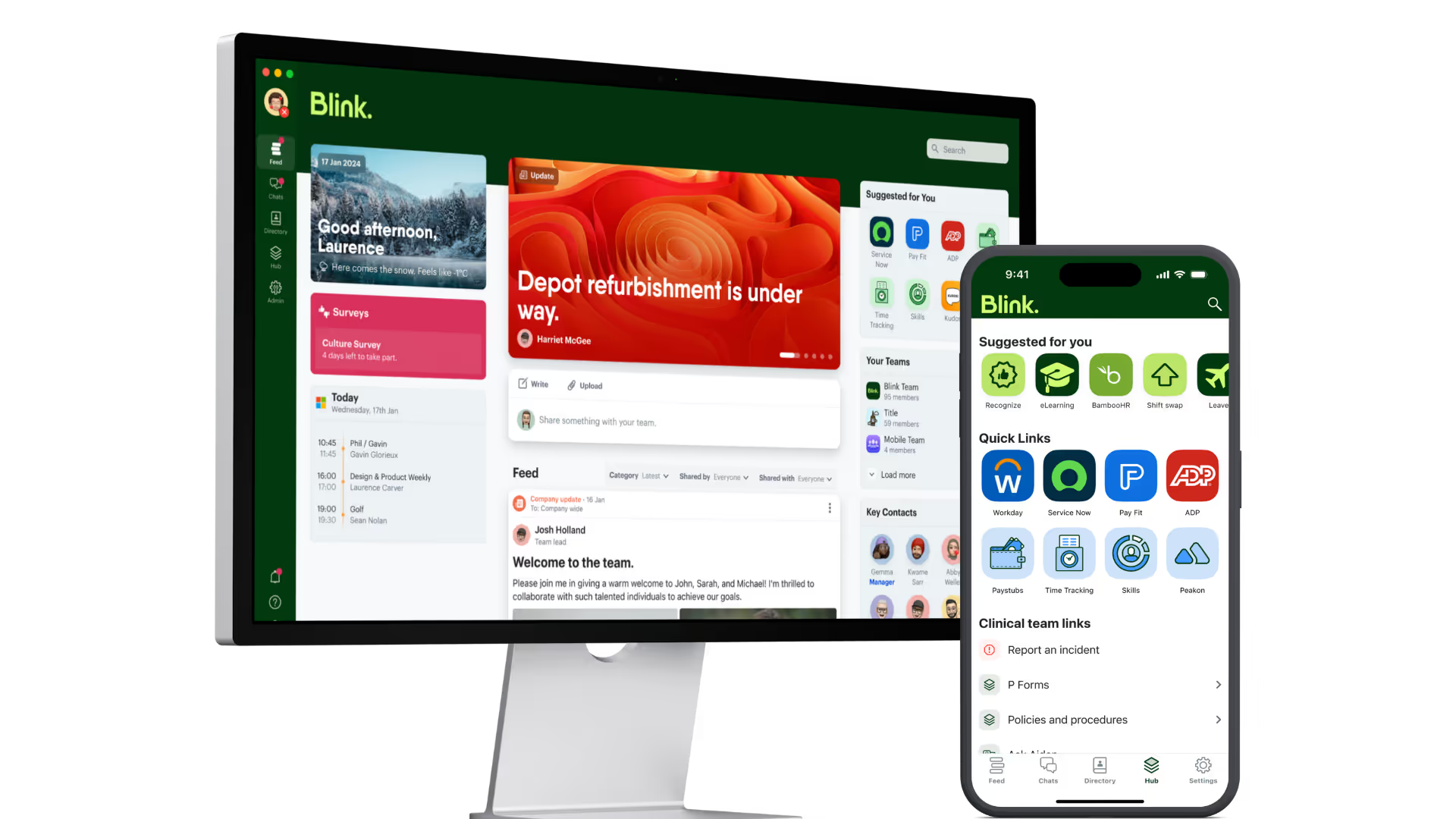
Blink isn't a time clock, and it's not trying to be one. It doesn't build a direct integration with any time clock vendor today, so if you're picking a tool specifically to automate payroll export or GPS enforcement, the three vendors above are the right place to look, not Blink. What Blink does is sit in front of the tools your team already uses: staff open one app and find their schedule, their pay information, company news and updates from Workday and other HR systems, and a link or embedded micro-app into whatever time and attendance tool you've already chosen, through the Hub. Where a vendor supports third-party single sign-on, staff can move between Blink and that tool without typing a second password, a capability available on Blink's Pro plan.
That's an additional subscription that sits alongside your time clock, not a replacement for it, and setup is scoped to linking or embedding what you already use rather than migrating any data out of it. If app sprawl, not the clock itself, is the cost center you're trying to fix, that's the problem Blink is built for.
Start a 14-day free trial at app.joinblink.com. If you'd rather see the Hub and single sign-on working together first, book a demo and we'll walk through it.