
Offline employee app: what actually works without signal
A technician is three floors underground in a plant room, checklist open on her phone, zero bars on the signal meter. A bus driver pulls into a depot built from enough concrete to block every tower within half a mile. A construction supervisor is inside a basement pour with a safety form due before the crew breaks. None of them can wait for a page to load.
That's the real test of an offline employee app: a workforce app that saves certain content (schedules, policies, checklists, forms) directly to a worker's device so it can be opened with no signal, then syncs any changes automatically once the connection returns. It's not the same as an app simply loading slowly on a weak connection. True offline support means the content is already there before the signal drops. For a transit depot, a basement plant room, or a job site with one bar of coverage, that difference decides whether a worker gets the information they need or waits until they're back above ground.
Offline access is really one piece of a bigger problem: plenty of frontline workers go through a shift with limited or no reliable connectivity, and the tools built for desk-based teams rarely account for that. For more on the wider issue, see our guide to frontline digital inclusion. This guide focuses on the narrower, practical question: what offline mode actually means, who genuinely needs it, what it can't do, and the questions worth asking before you buy.
Who actually needs an offline employee app?
If your team works somewhere a phone regularly loses signal, offline access stops being a nice-to-have and becomes the reason the app gets used at all. Transit operators have drivers underground or outside network range for most of a shift. Construction crews work inside concrete structures, basements, and remote sites where cell towers don't reach. Facilities and maintenance teams spend hours in plant rooms and parking structures built specifically to block signal. Warehouse teams work inside steel-frame buildings where coverage is patchy at best. Rural healthcare and field service workers drive between locations with long stretches of no coverage in between.
Across these settings, an app that only works with a live connection effectively works for part of the shift. Workers either stop checking it in the places where they need it most, or they fall back to a printed schedule taped to a wall and a paper checklist on a clipboard, which is exactly the fragmented, unaccountable process a digital tool was supposed to replace. And the gap doesn't happen once. Across a dozen sites built to block signal, it repeats dozens of times a day, once per worker, per dead spot, per shift. Offline mode isn't a feature for its own sake. It's what keeps the app relevant in the exact moments it matters most.
If you're building the case for a frontline-wide rollout rather than a single-site fix, our guide to running toolbox talks digitally covers a related scenario: getting safety-critical content to crews in the field, signal or no signal.
What should actually work offline, and what realistically can't
Content that's been saved in advance can work offline. Anything that depends on a live connection to another person can't. Here's the dividing line:
What can reasonably work offline: a saved schedule, a policy document, a training resource, a safety procedure, a form, and a task checklist a worker has already opened. These are static or semi-static. They don't need a live round trip to a server to be useful. Save them to the device in advance, and a worker can read them, complete a checklist, and mark steps done without a connection.
What realistically can't work offline: live chat, new incoming messages, real-time notifications, and anything that depends on two people being connected to the same server at the same moment. A chat message sent while a worker has no signal has nowhere to land until the connection returns. Live streaming and video calling need a live connection by definition. Be wary of any vendor that implies these work offline, because it's not technically possible without delaying or queuing the real-time part of the feature. If a product page doesn't specify which features work offline and which don't, that's a sign the vendor hasn't thought it through either.
Questions to ask a vendor before you buy, and how to check them live
Before signing anything, run this as a five-minute test in the demo itself. Ask the vendor to put a phone into airplane mode, then walk through each step in order.
- What exactly gets saved for offline use? Ask for the full list before the demo starts: schedules, policies, forms, task checklists, training content. If the answer is vague, push for specifics. "Most of the app" is not an answer.
- With the phone still in airplane mode, open a saved document and a task checklist. Confirm both load and that steps can be marked complete with zero connection. If anything spins or fails to load, that's your answer about what's actually saved versus what the vendor claims is saved.
- Turn the connection back on and watch what happens. Does sync happen automatically in the background, or does someone have to manually refresh or re-open the app? If a step gets left to the worker to remember, it's a step that eventually gets skipped.
- Ask what happens to version control. If a policy document changed while the device was offline, does the worker see the old version until they reconnect, or does the app flag that an update is pending? Ask what happens if two people edit the same thing while both are offline.
- Ask where the data lives, especially on personal phones. Many frontline workers use their own devices for work apps. Ask what's cached locally, how long it stays there, and what happens to that data if the worker leaves the company or uninstalls the app. This matters for data governance as much as it does for user experience.
If a vendor can't walk through that sequence live, in airplane mode, in the room, treat every claim about offline support as unverified.
How Blink works offline
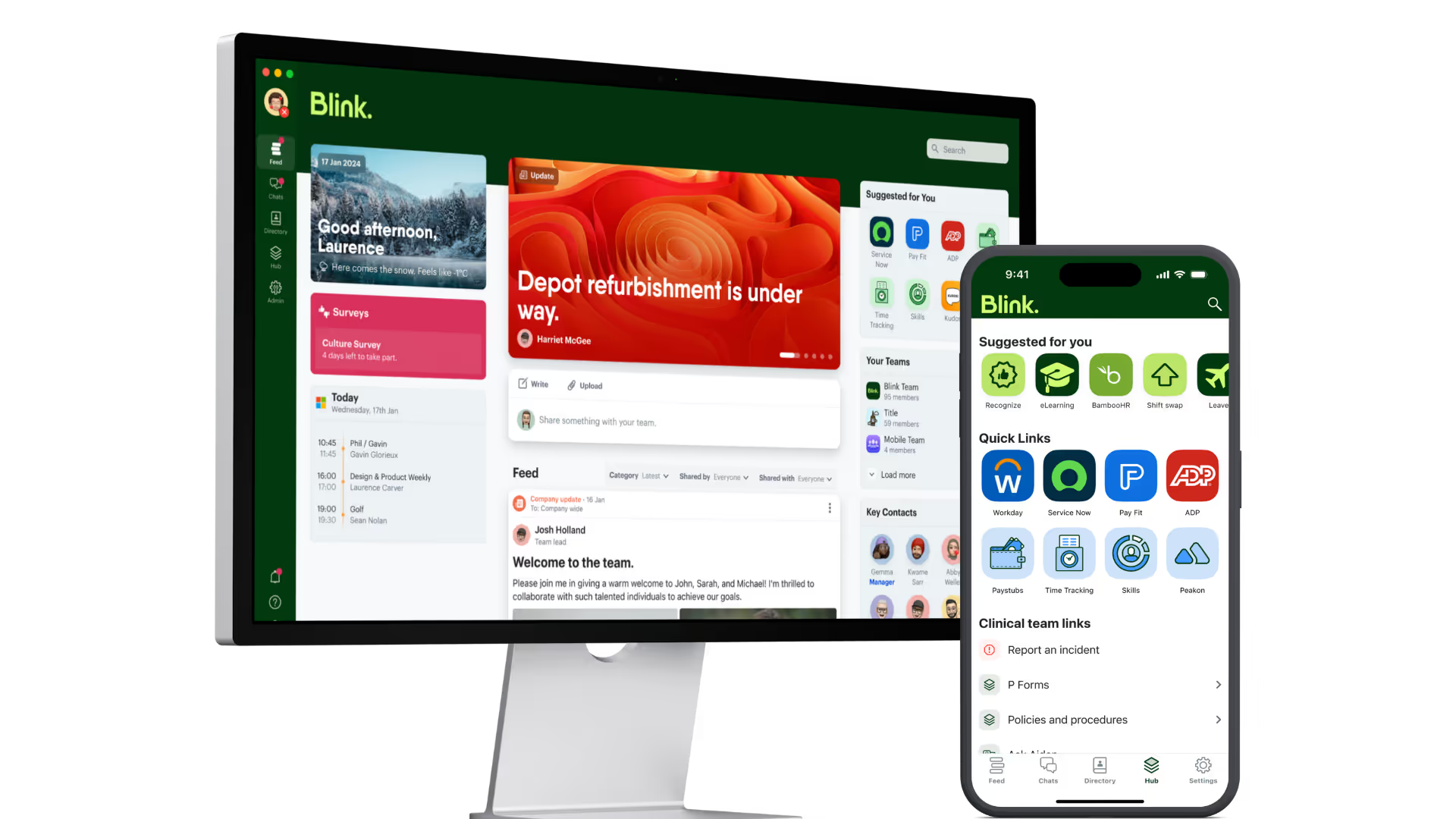
Blink lets workers save Hub content in a tap and complete task checklists with no connection at all, with everything syncing automatically the moment signal returns. Workers save the schedules, policies, procedures, and resources they'll need before heading into a dead zone, whether that's a depot basement, a plant room, or a stretch of rural road with no coverage.
When the device reconnects, Blink's offline mode syncs automatically in the background, so a worker isn't stuck looking at a stale version of a policy document without knowing it's out of date. The same logic applies to Blink's task management, where workers can open a checklist, complete the steps, and capture photo evidence with no signal, and the completed task syncs the moment the connection comes back.
Many frontline workers use their own phones for this, and offline mode works the same way regardless of the device: a worker signs in, saves what they need, and it's working from there.
Start a 14-day free trial and see what your team can access with zero signal. Or book a demo and run the airplane mode test yourself, live, with your own content.